
Becca
Well known member
There are two ways to add a picture to a post:
Option 1: Insert/Edit Image
Use this for images you find on the internet.
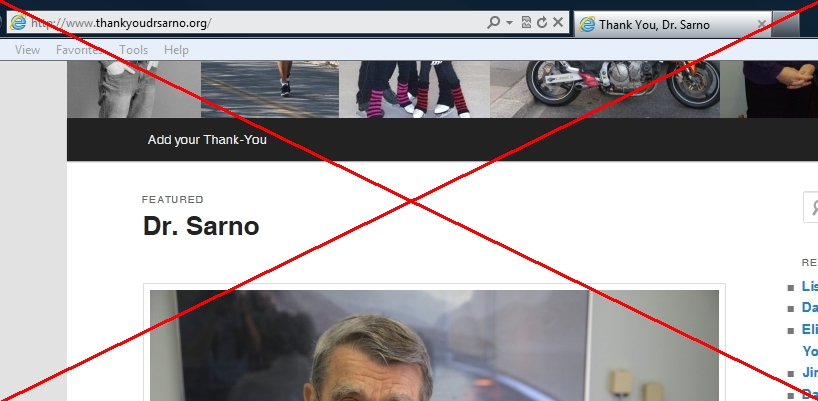
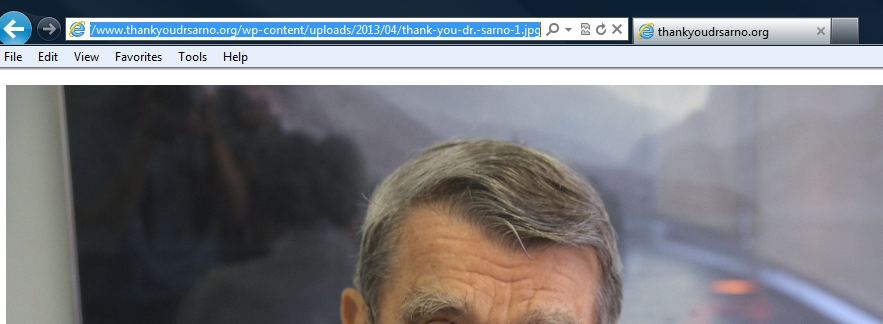
First, you will need to highlight and copy the URL (location) of the specific image you want to include. Make sure the URL is for that image, not the webpage you found the image on.
Then, in your post, click on the icon that looks like a tree:

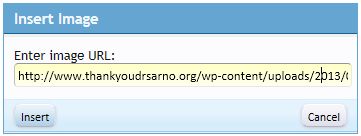
A blue box should pop up. Paste in the image URL where it says Enter media URL and click Insert:
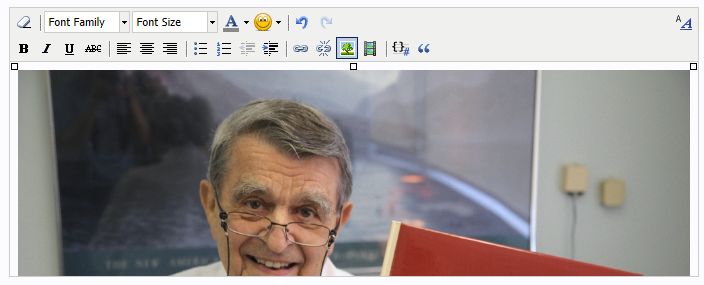
You should see your image immediately:
Type around your image, and post!
Option 2: Upload a File
Use this for images you have saved on your computer.
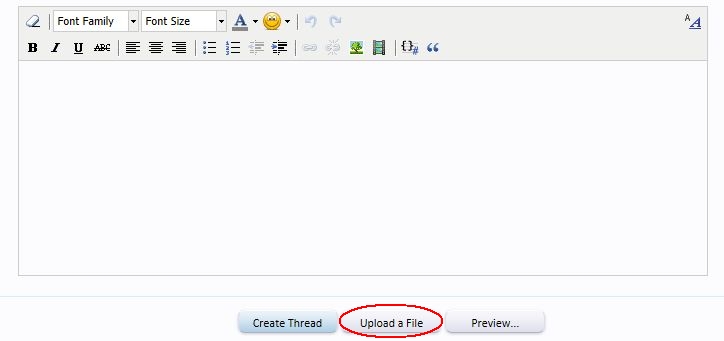
First, click on the Upload a File button, located below the text box:
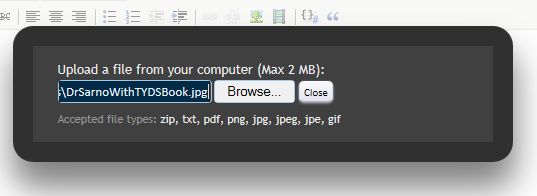
A black box should pop up. Click Browse and choose the image you want to add from your computer:

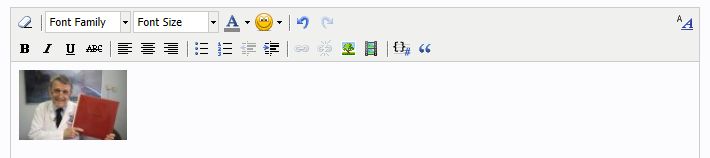
In the text box, click where you'd like your image to go. Then scroll down to the attached file of your image, and click on Full Image. Your image should immediately appear:
If you want, you can add small versions of your images (thumbnails) instead of the full-sized picture. Just click on Thumbnail instead of Full Image:

Type around your image, and post!


Option 1: Insert/Edit Image
Use this for images you find on the internet.
First, you will need to highlight and copy the URL (location) of the specific image you want to include. Make sure the URL is for that image, not the webpage you found the image on.
Incorrect
Correct
Then, in your post, click on the icon that looks like a tree:
A blue box should pop up. Paste in the image URL where it says Enter media URL and click Insert:
You should see your image immediately:
Type around your image, and post!
---------
Option 2: Upload a File
Use this for images you have saved on your computer.
First, click on the Upload a File button, located below the text box:
A black box should pop up. Click Browse and choose the image you want to add from your computer:
Your uploaded image should appear below the text box, as an attached file:In the text box, click where you'd like your image to go. Then scroll down to the attached file of your image, and click on Full Image. Your image should immediately appear:
If you want, you can add small versions of your images (thumbnails) instead of the full-sized picture. Just click on Thumbnail instead of Full Image:
Type around your image, and post!


